Know who still owes you, and how much
A client agrees to pay you. Later, they pay in parts. CatatKoin keeps the agreed amount, each payment you received, and the amount still owed in one place. You do not need a spreadsheet, and you do not need to connect a bank.
Start tracking client paymentsAdd a client charge. When the money arrives, record each payment. Then see what is still outstanding.
A bill you sent does not tell you what is still unpaid
When you freelance, one job can bring several payments. A client pays a deposit first. Later, they pay one transfer for two jobs. Another client stops replying.
The bill sits in one tool. The payment notices sit in your bank app. The running list sits in your notes. To answer "who still owes me?", you must put the story together again.
CatatKoin gives each agreed amount its own record, called a client charge. A client charge is the amount a client agreed to pay you. You add each payment you receive. CatatKoin shows how much you collected and how much is outstanding. Outstanding means the part the client did not pay yet.
The names, amounts, and dates are illustrative. This is not a customer story.
A freelance designer tracks three jobs for two clients in October
You are a freelance designer in Indonesia. You use a money account called Work bank in IDR. You started tracking it on October 1 with an opening balance of Rp2.000.000.
Two clients matter this month:
- Studio Merah is a design studio. It hires you for a website redesign and, a week later, a logo refresh.
- Toko Kopi Senja is a small cafe. It hires you to design its menu.
You make your bills in another tool. CatatKoin does not create invoices. It tracks what was agreed and what was paid.
Here is what you agree to this month:
| Client | Job | Total due | Agreed date | Deadline |
|---|---|---|---|---|
| Studio Merah | Website redesign (bill INV-2026-014) | Rp12.000.000 | October 1 | October 31 |
| Toko Kopi Senja | Menu design | Rp2.000.000 | October 2 | October 15 |
| Studio Merah | Logo refresh | Rp3.000.000 | October 8 | October 20 |
From a promised payment to a clear record
- 1
Add the agreed job as a client charge
Open Client payments in the sidebar. The page says: "Track what clients agreed to pay and what you collected." Click Add charge.
A client is a person in your Contacts. Contacts is your list of people and businesses. CatatKoin has no separate client list. If Studio Merah is not in Contacts yet, add it there first.
The Add client charge form opens. Fill it in like this:
Field Example Client Studio Merah Workspace Personal Workspace Title Website redesign Total due Rp12.000.000 Currency IDR Agreed date October 1, 2026 Deadline (optional) October 31, 2026 External invoice reference (optional) INV-2026-014 Notes (optional) Bill made in my billing tool. 50% deposit first. A Workspace is a separate area in CatatKoin for one part of your money, such as personal or business. Each charge belongs to one Workspace. The agreed date cannot be in the future. The deadline cannot be before the agreed date.
The External invoice reference is only a label. It helps you find the bill you made elsewhere. CatatKoin does not check it and does not send it to anyone. If you use the same reference twice for the same client in the same Workspace, the form warns you. To save it anyway, tick Keep this reference.
Click Save charge.
The charge starts with the status Unpaid. Rp12.000.000 is outstanding. This step does not add any Income and does not change any account balance. No money arrived yet.
- 2
Record the deposit when the money arrives
On October 3, Studio Merah pays a 50% deposit of Rp6.000.000 into Work bank. Open the Website redesign charge. Click Record new receipt.
A receipt is money you actually received. Income is the CatatKoin record of money received. Fill in the dialog:
Field Example Income title Studio Merah deposit Receiving account Work bank Amount received Rp6.000.000 Received date October 3, 2026 Payer or source (optional) Studio Merah Notes (optional) 50% deposit for the website redesign Below the fields, you see Apply to charges for Studio Merah. Each open charge of that client has a checkbox. Tick Website redesign. In Amount for this charge, enter Rp6.000.000.
A summary line tells you what will happen. It says Rp6.000.000 is applied, nothing stays as unallocated Income, and "Saving adds Rp6.000.000 to Work bank." Click Record receipt.
Each part of a receipt that you apply to a charge is called a collection. Now the charge shows:
- Status: Partially received
- Collected: Rp6.000.000
- Outstanding: Rp6.000.000
The receipt also appears once on the Income page. Work bank's recorded balance goes up once, by Rp6.000.000. The collection only shows how much of the receipt counts toward this charge. It does not add money a second time.
If you set a received date before the agreed date, CatatKoin asks you to tick Allow a receipt dated before the agreed date. Neither date changes.
- 3
Connect a payment you already recorded
On October 2, the cafe, Toko Kopi Senja, paid a Rp500.000 deposit into Work bank. You recorded it that day on the Income page as "Menu design deposit". At that time, you had no charge for it.
On October 4, you add a charge for the menu design:
Field Example Client Toko Kopi Senja Title Menu design Total due Rp2.000.000 Agreed date October 2, 2026 Deadline October 15, 2026 Open the new charge and click Use recorded Income. In the Recorded Income list, choose "Menu design deposit". The list shows that Rp500.000 of it is still unallocated. Unallocated means not yet applied to any charge. Apply Rp500.000 and click Apply Income.
The charge becomes Partially received. Rp500.000 is collected and Rp1.500.000 is outstanding. This action changes collection progress only. It adds no money. Work bank does not change, because you already recorded that deposit on October 2.
If you only need to track an older bill that already has earlier payments, enter only the amount still owed in Total due. Put the original total in Notes.
- 4
Apply one payment to two charges
On October 8, Studio Merah asks for a logo refresh. You add a second charge for Studio Merah. The title is Logo refresh, the total due is Rp3.000.000, and the deadline is October 20.
On October 14, Studio Merah sends one transfer of Rp9.000.000. It covers the rest of the website (Rp6.000.000) and the whole logo (Rp3.000.000).
Record it once. Open either charge and click Record new receipt. Use the title "Studio Merah October payment", the receiving account Work bank, and the amount Rp9.000.000. Set the received date to October 14, 2026.
Under Apply to charges for Studio Merah, tick both open charges:
Charge Amount for this charge Website redesign Rp6.000.000 Logo refresh Rp3.000.000 The summary shows Rp9.000.000 applied and nothing unallocated. Click Record receipt.
Both charges become Fully received. The bank sent one payment, and CatatKoin records one Income of Rp9.000.000. Work bank goes up once, by Rp9.000.000. One payment can pay several charges of the same client and still counts as one Income.
You cannot apply more than the receipt amount. You also cannot apply more than a charge still needs. If a client sends extra money, the extra stays as normal Income. CatatKoin does not apply it to any charge by itself.
- 5
Watch the overdue charge, then close it
The cafe's deadline was October 15. The cafe did not pay the rest and no longer replies to your messages.
The Reminders page has a Client payments filter. If an open charge has money still owed and is overdue, due today, or due in the next 7 days, it appears there. On October 16, you see a row like this:
Client payment · Toko Kopi Senja · outstanding
Reminders stay inside CatatKoin. CatatKoin sends nothing to your client. Charges without a deadline, fully received charges, and closed charges do not appear.
You message the cafe again, and nothing happens. On October 28, you decide to stop chasing the Rp1.500.000. Open the Menu design charge and click Close balance. CatatKoin asks for a reason. Write: "Client stopped replying. I will stop chasing this."
Now the charge shows the status Closed. The Rp1.500.000 leaves the outstanding total and leaves the Reminders page. The Rp500.000 deposit stays as collected, and its Income stays on the Income page.
Closed is not the same as Fully received. Closed means you stopped pursuing the rest. It does not mean the client paid. It also does not record a refund. If the cafe pays later, click Reopen charge, and the Rp1.500.000 becomes outstanding again. Then record the new receipt.
- 6
Review the month and export it
At the end of October, open Client payments and choose the All tab. The other tabs are Open and Closed. By default, the page shows open charges that are not fully received, with the most urgent deadline first.
Set Agreed from to October 1 and Agreed to to October 31. You can also filter by Client, Progress, and Deadline. For example, the Progress filter has choices such as Unpaid, Partially received, and Fully received.
The totals card shows these amounts for all matching charges. It counts every page of results, not only the first page. If you have charges in more than one currency, each currency has its own totals.
Total in IDR Amount Outstanding Rp0 Overdue Rp0 Collected on these charges Rp15.500.000 Closed uncollected Rp1.500.000 Click Export. The Export client payments dialog shows the number of charges, which is 3 here. Click Download CSV. A CSV is a plain table file that opens in Excel or Google Sheets. It has one row per charge. The columns include currency, total due, collected, outstanding, closed uncollected, progress, and status. You can send it to your accountant or add it to your own spreadsheet.
Collected amounts in the file are the parts of receipts applied to each charge. They are not the full receipt totals.
- 7
See what changed in your records
This table shows the end result for the three charges:
Charge Total due Collected Outstanding Closed uncollected Status Website redesign (Studio Merah) Rp12.000.000 Rp12.000.000 Rp0 Rp0 Fully received Logo refresh (Studio Merah) Rp3.000.000 Rp3.000.000 Rp0 Rp0 Fully received Menu design (Toko Kopi Senja) Rp2.000.000 Rp500.000 Rp0 Rp1.500.000 Closed Now look at Work bank. Only a new receipt adds money. Adding a charge, applying recorded Income, and closing a balance do not add money.
Date What you do Adds money to Work bank? Work bank recorded balance October 1 Start with the opening balance Not applicable Rp2.000.000 October 1 Add the Website redesign charge No Rp2.000.000 October 2 Record the "Menu design deposit" on the Income page Yes, +Rp500.000 Rp2.500.000 October 3 Record new receipt: Studio Merah deposit Yes, +Rp6.000.000 Rp8.500.000 October 4 Add the Menu design charge and apply the October 2 Income No Rp8.500.000 October 8 Add the Logo refresh charge No Rp8.500.000 October 14 Record new receipt: Studio Merah October payment Yes, +Rp9.000.000 Rp17.500.000 October 28 Close the Menu design balance No Rp17.500.000 The Income page shows three receipts for October: Rp500.000, Rp6.000.000, and Rp9.000.000. They add up to Rp15.500.000. That is the same as the collected total above.
What you can look back on
One place for each agreement
Each charge shows its total, what you collected, and what is outstanding.
A clear history
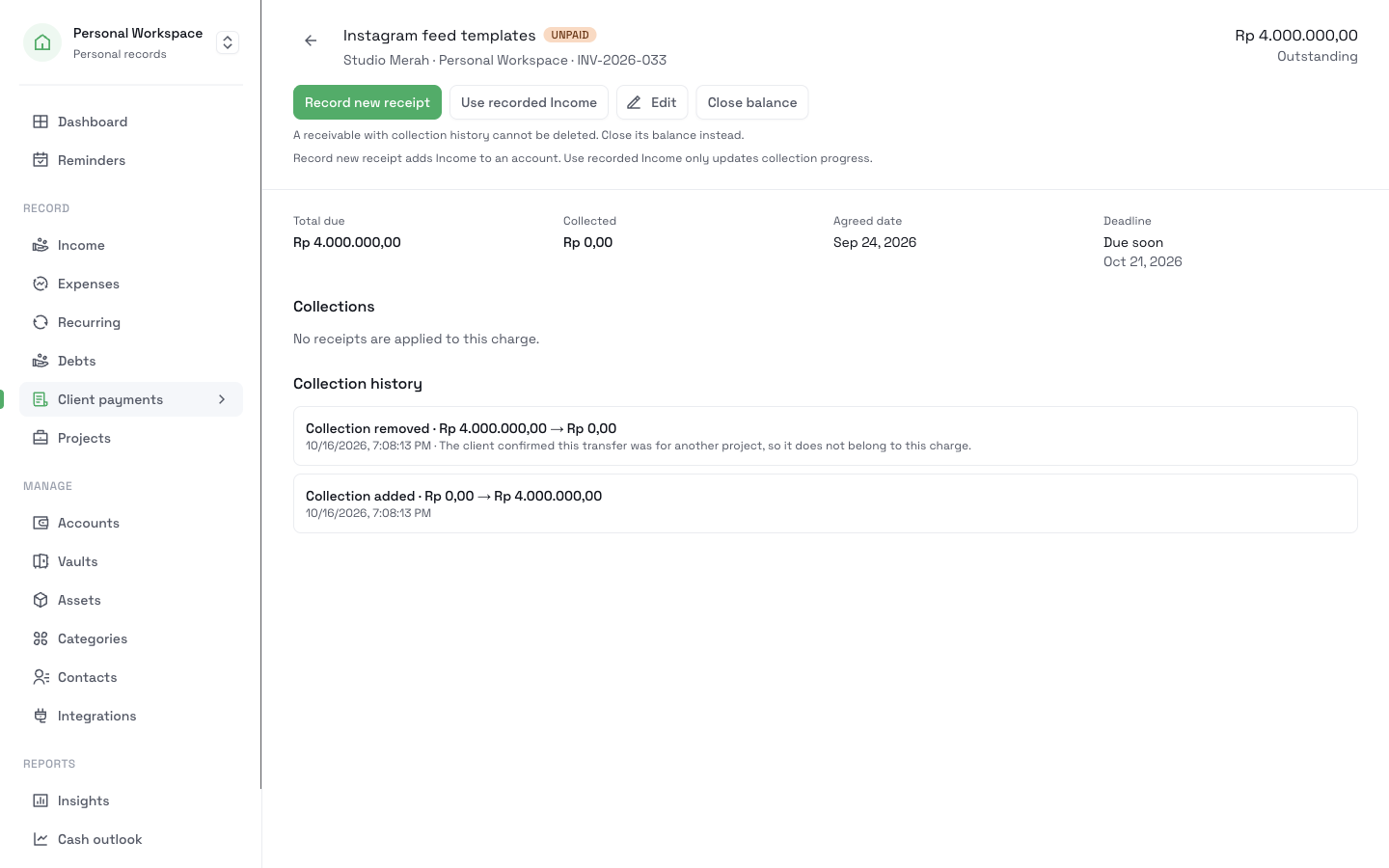
The charge page has a **Collections** section. It lists each receipt you applied, with **Adjust** and **Remove**. The **Collection history** section lists every change with its date and reason.
No double counting
A receipt is Income once. Applying it to a charge only shows how much of it counts toward that charge.
A view of what needs attention
The Reminders page shows overdue charges, and the totals card shows what is outstanding.
Questions before you start
Related pages
Client payments
Record what each client agreed to pay, apply each payment you receive, and see what is still outstanding. Track payments in parts, without a bank connection.
Read moreIncome
Record each payment you receive with its date, source, and receiving account. Filter by account, source, or dates and see totals for each currency.
Read moreTrack client payments
Record received client payments in the right account. Review income by date or source, see recorded balances, and correct payment details in CatatKoin.
Read moreTrack project costs and collections
Give each client job a page with its vault, recorded costs, charges, and collected payments. Split one payment across jobs and export a private CSV.
Read moreGive your next agreed payment a clear place in your records
Pick one client who owes you money today. Add the charge with its total, dates, and bill reference. When the money arrives, record the receipt and apply it. Then you can see what is still outstanding.
Start tracking client payments